A small authenticator for the macOS menu bar. Press ⌥⌘O, type a few letters of the account and press Return — the current code is typed right into the field you were in. No phone, no copy and paste.
1.2 MB · macOS 14 or later · Apple silicon · What’s new
One shortcut, one keystroke
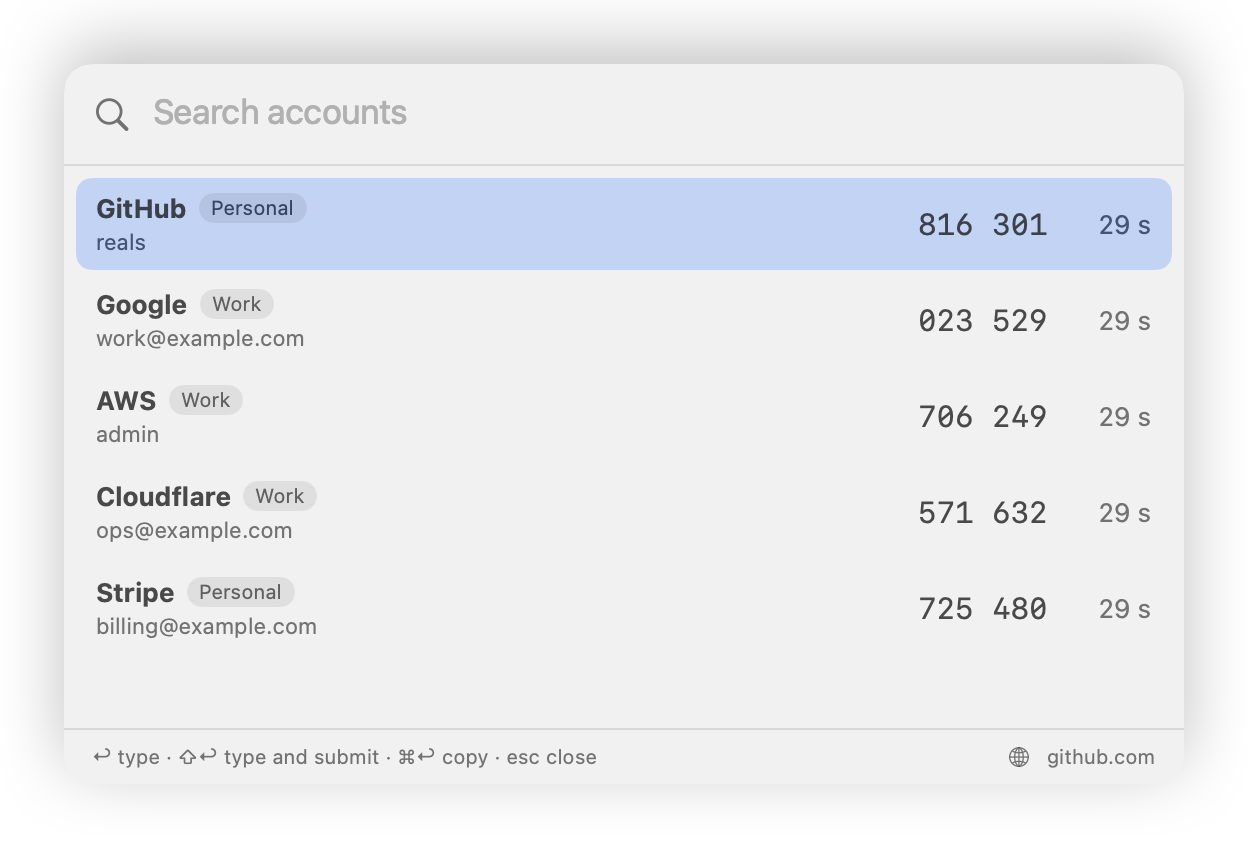
The search panel opens over any app without taking focus from it. Codes update live, and the account for the site in your browser tab is already selected.
The search panel with accounts in Personal and Work groups. GitHub is preselected because github.com is open in the browser.
Why OTPBar
Authenticator apps live on the phone: unlock it, find the app, find the account, read six digits, type them before they expire. Many times a day.
OTPBar keeps the same codes on your Mac and puts them where they are needed. It types into any input field — including sites that use a login plus a one-time code instead of a password, where browsers and password managers don’t offer to fill anything.
What it does
Everything lives in the menu bar; there is no Dock icon.
Search and groups
Fuzzy search by issuer, account name or group. Sort accounts into groups such as Personal, Work or Testing; accounts you use often and recently come first.
Types into any field
Return types the code into the previously focused field, in any app and with any keyboard layout. ⇧Return also submits the form — or let an account always do so. ⌘Return copies the code instead.
Never a stale code
If the current code has less than four seconds left, OTPBar waits for the next one and says so, instead of typing a code that expires on the way.
Careful with the clipboard
A copied code is marked so that clipboard managers skip it, and is cleared after 30 seconds — unless you have copied something else since.
Import from anywhere
otpauth:// links, QR codes from a screenshot or an image file, Google Authenticator export QR codes, text exports of other apps, or a key typed in by hand.
Encrypted backup
After every change OTPBar writes an encrypted backup to iCloud Drive and keeps the last five versions. Check Backup confirms that every account would come back with the same codes after reinstalling macOS.
Recovery codes and QR codes
Keep a site’s one-time recovery codes with its account. Show an account’s QR code to move it to another authenticator — in a window hidden from screenshots and screen sharing.
Touch ID, if you want it
Optionally ask for Touch ID before codes are shown, once per session: again after the screen locks, the Mac sleeps or OTPBar restarts.
Where your secrets live
OTPBar makes no network connections and has no account or server. The secrets stay on your Mac.
Data
Where it is kept
Account secrets
Your login keychain on this Mac, in one item. Not synced through iCloud Keychain, never written to files or logs.
Account list
Names, sites and usage counts in ~/Library/Application Support/OTPBar. No secrets in it.
Backup
iCloud Drive/OTPBar/backup.otpbar, encrypted with AES-GCM. The key is derived from your passphrase with PBKDF2-SHA256, 600 000 iterations.
Passphrase
Nowhere. Only the derived key is cached in the keychain, so automatic backups don’t ask for it.
Recovery codes
In the same keychain item as the account secrets, and in the encrypted backup.
Without the passphrase the backup can’t be opened — not by OTPBar, not by anyone else. Keep it in a safe place.
Install
Download and unzip
Move OTPBar.app to your Applications folder before opening it.
Open it the first time
OTPBar isn’t notarized by Apple, so macOS blocks the first launch. Open it once, then go to System Settings → Privacy & Security and click Open Anyway.
Add your accounts
Menu bar icon → Settings… → Import. In Google Authenticator, Transfer accounts → Export shows QR codes you can take a screenshot of on the phone and import here. Sort them into groups on the Accounts tab.
Set a backup passphrase
On the Backup tab. From then on every change is backed up to iCloud Drive automatically.
Allow Accessibility and keychain access
The first time OTPBar types a code, it asks for Accessibility (System Settings → Privacy & Security → Accessibility); copying with ⌘Return works without it. When it first reads its keychain item, macOS asks for your login password — choose Always Allow.
Updating: download the new version and replace the app. macOS asks for the login password once more for the new version’s keychain access. To uninstall, quit OTPBar, delete the app and ~/Library/Application Support/OTPBar, and remove the com.realsweb.OTPBar.vault item in Keychain Access. The backup stays in iCloud Drive until you delete it.
Press Return after the code: ⇧↩ in the panel types the code and submits the form, and an account can be set to always do so — handy for sites where the code is the password. Such accounts show a ↩ mark in the panel.
Check Backup on the Backup tab decrypts the backup and confirms that every account would be restored with the same codes, or lists what is missing.
Show QR Code… in an account's context menu, to move the account to another authenticator. It asks first, and the window is hidden from screenshots and screen sharing.
Recovery codes: keep a site's one-time recovery codes with the account. They are stored in the keychain and included in the encrypted backup.
Optional Touch ID check before the panel shows codes, once per session (until the screen locks, the Mac sleeps or OTPBar restarts). Off by default; turn it on in Settings → General.
Account groups, such as Personal, Work or Testing. Create, rename and delete groups in Settings → Accounts → Groups…; choose an account's group when editing it or from its context menu. The account list is shown by group, the search panel labels each account with its group, and typing a group name finds its accounts. Groups are included in the backup.
Fixed
Settings and About OTPBar opened from the menu bar no longer appear behind the windows of the active app.
Search panel on a global shortcut (⌥⌘O by default): fuzzy search by issuer and account name, frequently and recently used accounts first, live codes with a countdown.
Enter types the code into the field that was focused before the panel opened, in any app and with any keyboard layout. ⌘Enter copies it instead; the copy is hidden from clipboard managers and cleared after 30 seconds.
If the current code is about to expire, OTPBar waits for the next one.
Import from otpauth:// links, QR codes (image file or clipboard), Google Authenticator export QR codes, text export files of other apps, and manual entry of a key.
Encrypted backup in iCloud Drive (AES-GCM, key from your passphrase via PBKDF2-SHA256 with 600 000 iterations), updated after every change, with the last five versions kept. Restore from iCloud Drive or a file.
Optional matching of accounts to the site in the active Safari or Chrome tab.
Settings window: rename and delete accounts, sites per account, shortcut, launch at login.